An AI UX audit agent for Claude Code: How it walks a live product and what the report shows
I built ux-audit-agent, a free plugin for Claude Code. You give it a product URL and a task. It walks the task in a tab of your own browser, captures every screen, measures elements in the DOM and writes one HTML report with marked screenshots. This piece explains how it works and shows a report it wrote on Linear.
Why I built it
In October 2026 I looked at five open-source audit tools for coding agents. Most check Figma files, code or screenshots against a list of rules, or write their notes to a markdown file. The closest to walking a product is a QA tool for engineers. None walked a task in a product that needs a login and marked its findings on the screenshots.
A checklist tells a team what a screen breaks. The agent asks whether a person can finish the task they came for, how much it takes to get value, and where the product makes that harder than it needs to be.
How it works
You type /audit and give a URL and a task, or let the agent propose two or three core flows. Before it starts it asks what counts as success and where the first value is. Then it walks the task in your browser, captures each screen and reads the position of every element it talks about from the DOM. The numbered marks on the screenshots are drawn from those measurements.
To install it, run these two commands in Claude Code:
/plugin marketplace add andyur/ux-audit-agent/plugin install ux-audit-agent@andyurIt needs Node 20 or newer and a Chromium browser from 2026. On the first run it installs one dependency, Playwright, which drives the browser you already have.
Three depths
- Quick walks one task you name.
- Standard, the default, looks at the product and proposes two or three core flows, such as first value, the path to paying and a return visit. You confirm them before it starts.
- Deep adds each flow’s edges: empty states, input errors, recovery, settings defaults and a check at phone width.
Every flow is walked end to end, so each finding has a screenshot and a measurement behind it. A multi-flow report shows all flows on one page, with shared priorities and the problems they have in common.
In your own browser
The agent opens one new tab in the browser window you already have open, in the profile you used last. Your sign-ins are already there, so it can audit the parts of a product behind a login, including onboarding. The browser asks once per audit to allow the connection. The agent works only in that tab and closes it at the end.
It never types passwords, creates accounts or passes 2FA. If the task needs an account, you sign in yourself. It asks before anything that deletes, pays, subscribes, sends, publishes or invites. If you would rather keep your own browser out of it, it opens a separate window instead.
How findings are checked
The agent follows a written protocol. Each finding is split into four labelled layers: what was observed, why it matters for this task, a hypothesis about real users, and a recommendation. The hypothesis is always marked as not observed. Conversion, revenue, abandonment and user feelings are never invented, and the validator refuses a finding without evidence.
A finding is also dropped if it fails any of six checks: it has to be visible in a captured state, specific to this product and task, supported by its screenshot, relevant to completing or understanding the task, concrete enough to act on, and open about it when a reasonable designer could disagree. Zero findings is a valid result.
Severity depends on the task. A problem that blocks it ranks above one that slows it, and that ranks above minor friction. How visible a problem is on screen does not change its rank.
An example: Linear
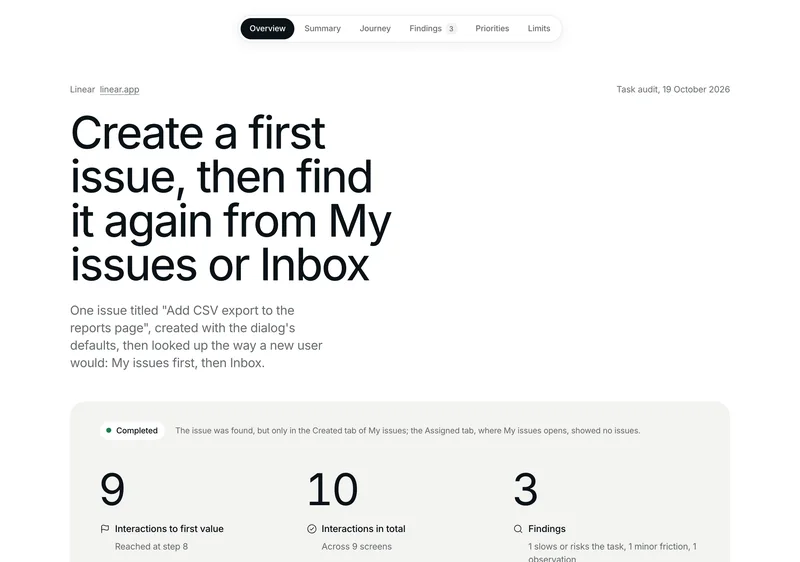
The task was to create a first issue and find it again from My issues or Inbox, the way a new user would. The agent finished it: first value came after 9 interactions, the whole task took 10 across 9 screens, and three findings survived the checks.
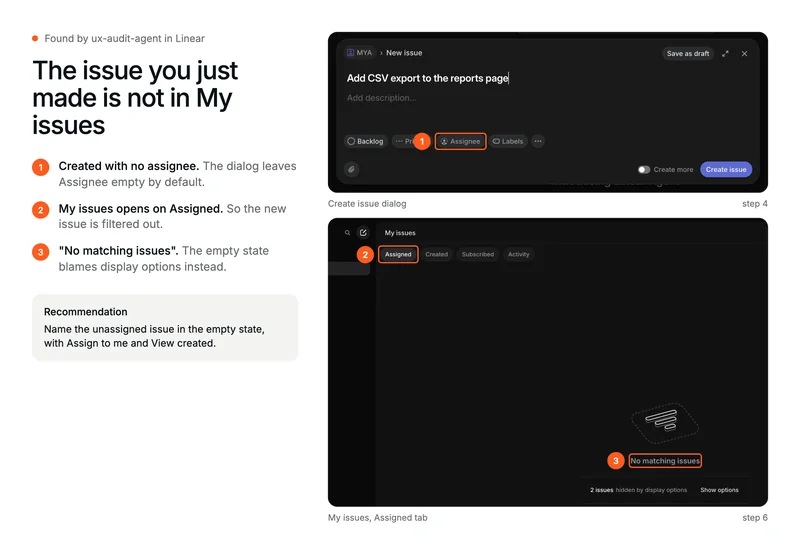
The main finding: a new issue has no assignee by default, and My issues opens on the Assigned tab, so the issue you just made is not there. The empty state says nothing about where it went. It turns up under Created. The other two findings are an empty state that mentions hidden issues without naming them, and issue creation reached through an unlabelled 28 px icon.
Open the full Linear report. Its source data is in the repository.
What the report contains
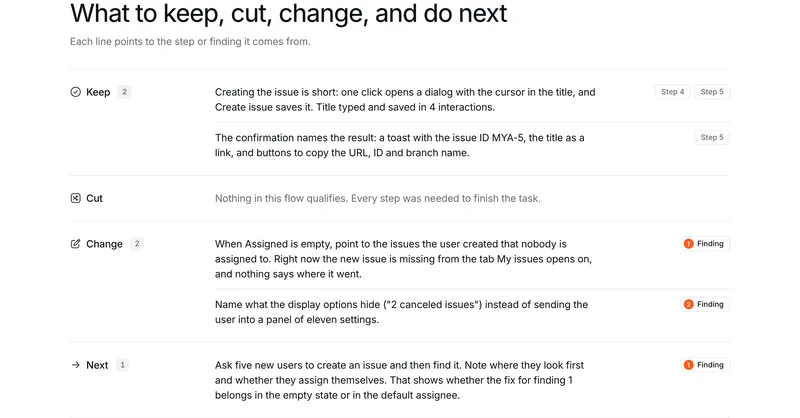
It opens with what to keep, cut, change and do next, each line pointing to the step or finding it comes from. Then the task step by step, the annotated findings, priorities written as cards you can paste into Linear, Jira or GitHub, and a list of what the audit could not see.
The report is a single HTML file in your folder. If you ask, the agent can also make a link for your team, kept for 30 days and then deleted.
Where it falls short
It can be wrong. Each audit is one automated run, so it says nothing about how long a person takes, where real users look first, or what a brand-new account sees when the audit runs in an older one. The report lists these limits near its end. It works with Chromium browsers only, and so far it has been tested on macOS with Chrome and Brave.
Some findings lead to product questions. Whether a new Linear issue should belong to its creator by default depends on how teams grow from one member to many, and no screen shows that. When a report reaches that kind of question, the agent says so and suggests a human review.
Try it
The code, install steps and FAQ are on GitHub. Everything runs on your machine and your own Claude account, and nothing is sent to me unless you share a link. I do this kind of review by hand as well, with the product decisions behind it: see Product Diagnosis or email me.