AI built me 25 screens in one evening: Then I found 21 button styles
Every screen looked fine on its own. The buttons worked, the layouts were consistent enough, and there was nothing obviously broken. But across the product, things started to drift.
Two icon buttons were 4px shorter than the others. A label used 11px text that didn’t exist in the design system. One link was underlined when none of the others were. Some components had been recreated with slightly different styles instead of reusing what was already there.
I probably wouldn’t have noticed most of this by clicking through the app.
That’s the problem I’ve been thinking about lately. AI agents have made building interfaces dramatically faster, but reviewing what they build hasn’t become much easier.
So I built a tool to help with that.
The problem isn’t the individual screen
An AI agent is pretty good at making one screen look reasonable. Give it a reference, some components and a clear task, and the result can be surprisingly good.
But a product isn’t one screen.
It’s dozens of screens, hundreds of components, different states, themes and interactions. The quality comes from how consistently those pieces work together.
Agents often make decisions locally. A button needs to be slightly different, so they add an override. A heading doesn’t fit, so they adjust its font size. A component already exists, but creating another one is easier in the immediate context.
None of these decisions seems particularly bad on its own. Across 25 screens, they add up.
Figma used to give me a place to see the entire product at once. With AI-generated applications, that overview is often missing. The real interface lives in code, and inspecting it means opening routes one by one.
I wanted something closer to a Figma canvas, but built from the application itself.
First, I needed something to break
I asked an agent to build Halden, a fictional business dashboard for a coffee roaster in Portland.
It has 25 screens and 97 states, including empty, loading and error states, plus a dark theme. I wanted it to feel like a real, reasonably complex SaaS product, with enough screens, components and edge cases to make consistency problems difficult to catch manually.
I also wanted realistic content. Six cafe locations, a wholesale business, American addresses, actual-looking names and financial data that adds up across screens.
This matters more than it sounds. Placeholder content makes almost any interface look consistent. Realistic names wrap, numbers need alignment, and tables behave differently when their contents vary.
Halden wasn’t intended to be a production-ready product. It was a reasonably convincing application I could use to test the review process.
My first idea was wrong
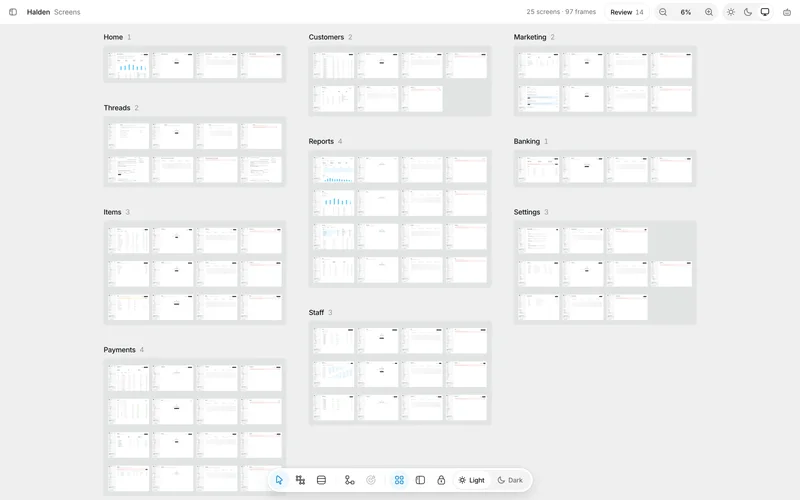
The first version of the tool was simple: render every route and state in Chrome, capture it, and arrange the screenshots on an infinite canvas.
It worked. I could zoom out and see the entire application, display all 97 states at once or switch every screen to dark mode.
It looked useful. Then I realised I wasn’t actually using it.
Having 97 screenshots in front of me didn’t tell me what needed attention. It was a better overview, but I was still doing the same manual inspection.
I also considered comparing versions between commits. That sounded interesting until I realised that two browser windows already solved much of that problem.
The breakthrough was noticing what the screenshots contained besides pixels.
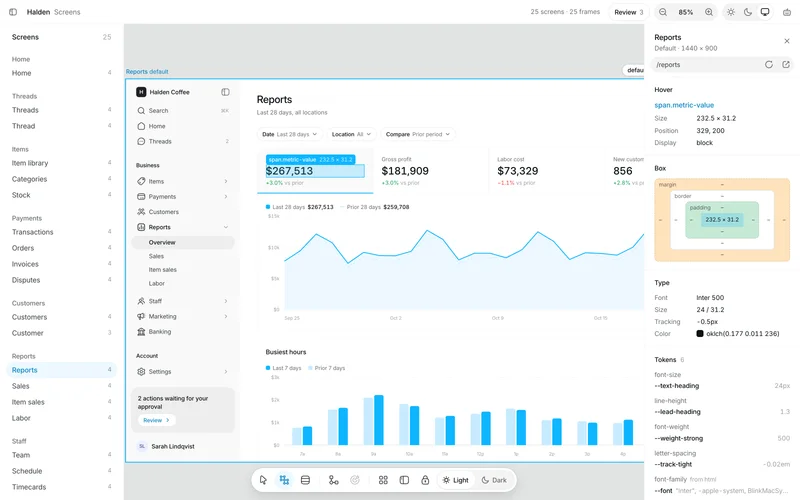
Chrome could give me the computed styles of every element. I already knew what each button, heading and container actually looked like in the browser.
Instead of only showing the screens, I could start asking questions about them.
What does this product actually ship?
I built an inventory from the rendered application.
It collects buttons and headings from every state and groups them by their actual appearance: dimensions, typography, padding, borders, colours and other visual properties.
On Halden, it found 450 button instances across 21 visual variants.
That’s not the same as 21 mistakes. Different buttons often need different styles.
What interested me was how many were almost identical.
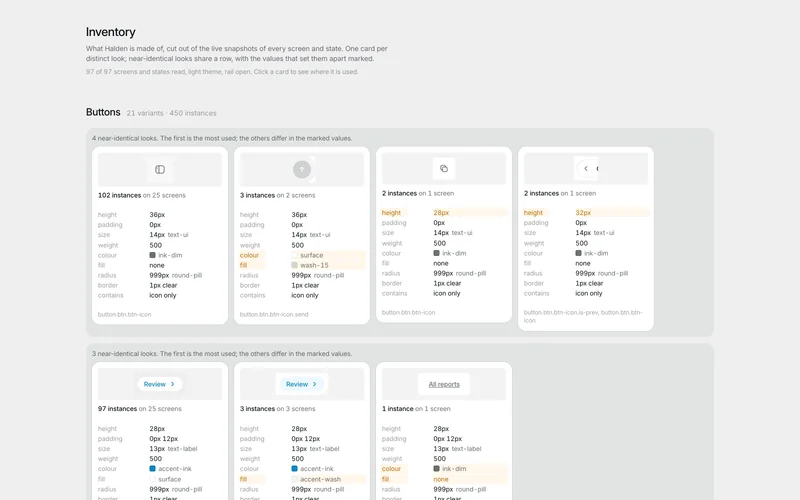
For example, the standard icon button was 36px tall. Two other variants were 32px and 28px.
Side by side, the difference was obvious. Inside separate screens, I had missed it.
The inventory also shows which values correspond to design tokens and which don’t. A font size without a matching token stands out immediately.
This is something I couldn’t get from reviewing the Figma library. The library tells me what components are supposed to exist. The inventory tells me what the application actually uses.
And those aren’t always the same thing.
Finding differences is easy. Deciding what to fix is harder.
My first attempt treated every inconsistency as an issue.
That was a mistake.
Sometimes a component is different for a good reason. Sometimes a one-off style is appropriate. And sometimes the most common version isn’t the correct one.
An automated tool can detect differences. It can’t reliably decide whether those differences are design mistakes.
So I changed the experience.
Instead of generating a long report, it asks me one question at a time.
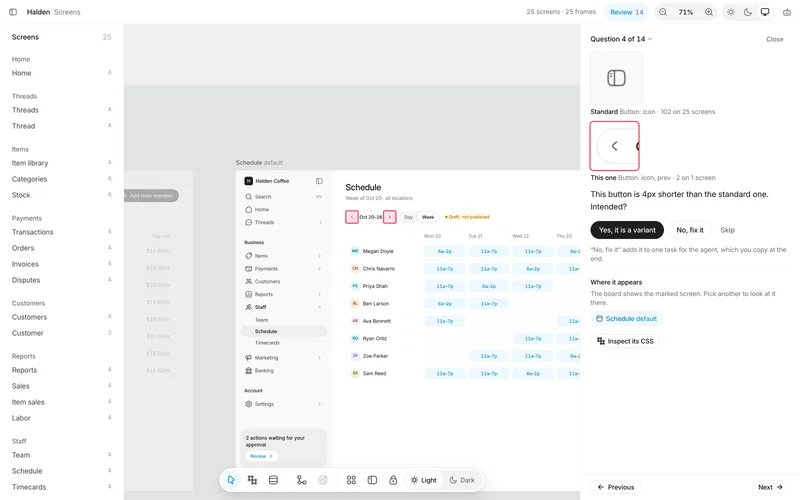
The question might be:
This icon button is 4px shorter than the standard. Intended?
I can keep it as a variant, mark it for fixing, or skip it.
It also checks for values missing from the token system and styles that appear only once or twice. When the difference might be explained by the content or context, it tells me.
On the first Halden review, it generated 14 questions.
I marked 8 as intentional variants, 3 for fixing and skipped 3.
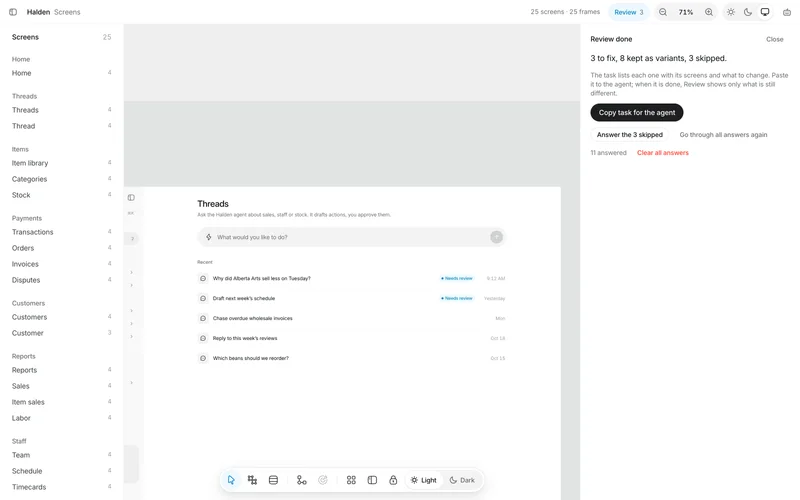
That’s a much more useful result than a list of 21 button styles. I could make a small number of actual design decisions instead of investigating every instance manually.
And then it goes back to the agent
This is where the workflow started to feel genuinely useful.
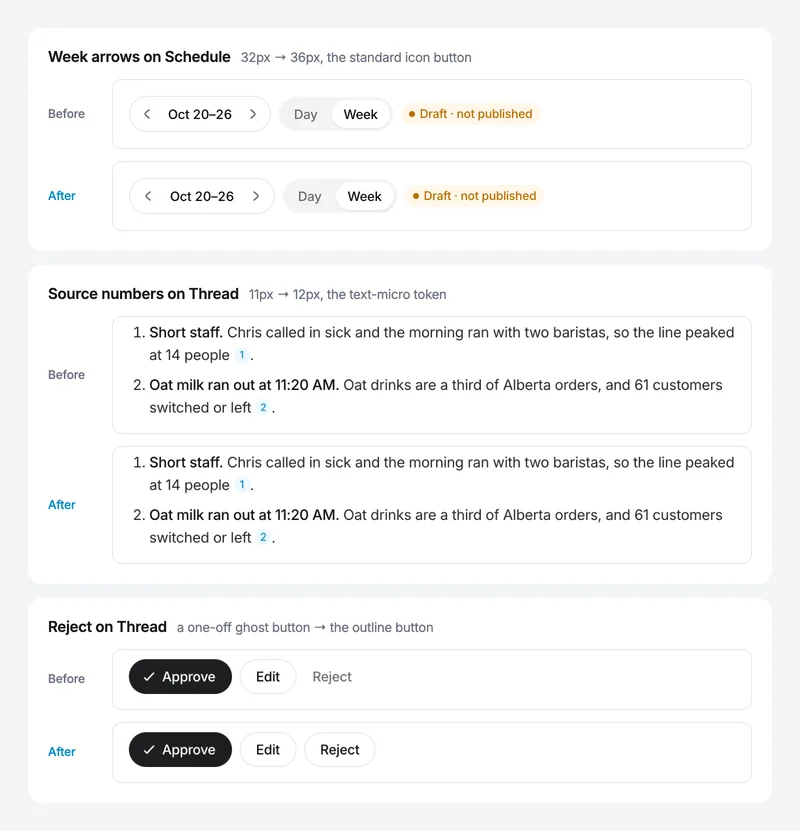
After reviewing the questions, I can copy one task for the coding agent. It includes the affected elements, their locations, the incorrect properties and the styles they should match. This is the one it wrote for those 3 fixes:
Fix these consistency problems in Halden, found by the screen canvas inventory.
For a near-copy, change it to look exactly like its standard. For a value with no token, use the right Halden token. For a look used once, use an existing style or say why it should stay. Change nothing else.

1. Button: icon, prev, 2 instances on Schedule: height 32px where the standard has 36px. Its standard is button.btn.btn-icon (102 instances).
2. Button: cite, 6 instances on Thread: size 11px matches no Halden token (nearest --text-micro).
3. Button: ghost, 1 instance on Thread: used only once, on one screen.
I don’t need to find the component in the code or explain the visual difference from memory. The tool has already collected that information.
When the agent changes the code, the canvas captures the updated application and checks it again. Previous decisions stay attached to their corresponding styles, so I don’t have to review the same intentional variants repeatedly.
I gave this task to the agent. It changed one CSS rule, one font size and one class. The canvas read all 97 states again, and Review went from 14 open questions to 11. The three fixes were gone. The eight variants I had kept were still there, as they should be.
The workflow becomes fairly simple:
Agent builds → canvas inspects → designer decides → agent fixes → canvas checks again.
I still make the design decisions. The agent still implements them. The tool handles the tedious part between the two.
There are other useful ways to look at the application
Not every problem is visible in a component inventory.
For layout differences, I built something called Slice.
I select a horizontal section of one screen, and the canvas shows that same section from every other screen, stacked vertically.
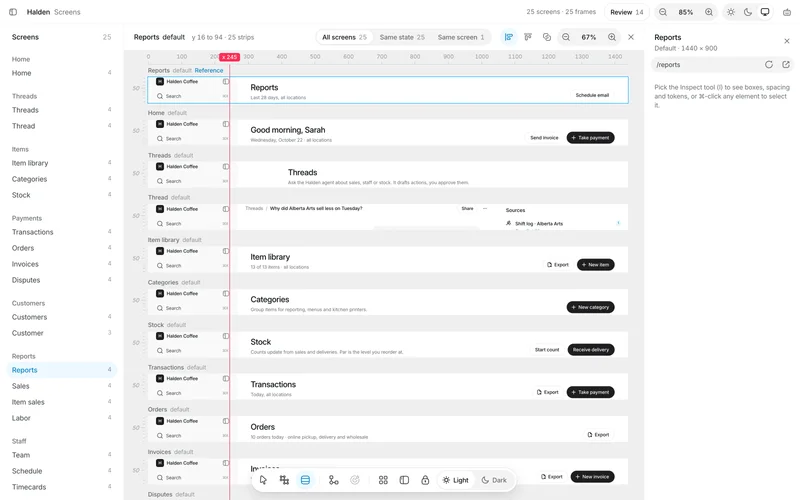
Looking at the page headers in Halden, I immediately noticed that the Threads title was aligned differently from the other 24 screens. It sat inside a centred column rather than following the same left edge.
There are also shared guides and a difference view, which make small shifts in padding, spacing or typography easier to notice.
Another mode lets me inspect an element and find the same element across the entire application. If I suspect one card has different padding, I can select it and see how its equivalents compare.
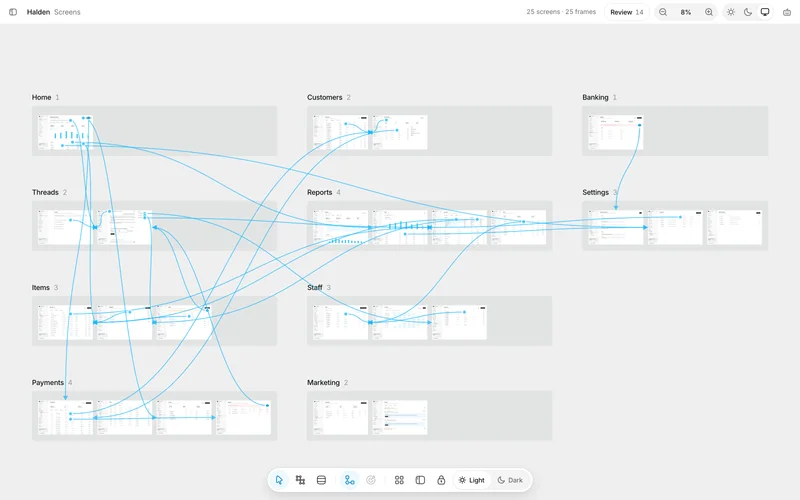
I also added navigation flows derived from the actual links, rather than manually drawing connections between screens.
These features are useful, but the inventory and review process have become the part I care about most.
What surprised me
I started by trying to recreate the overview I had in Figma.
What I ended up needing was something slightly different: a way to turn the real application into a set of design decisions.
The difference matters.
A canvas full of screenshots gives me visibility. An inventory gives me evidence. A review process gives me something to do with that evidence.
And the output needs to be specific enough that a coding agent can act on it without interpreting a vague design critique.
I don’t think the answer is to automate design judgement entirely. If anything, the experience reinforced how much judgement matters.
The useful automation is in finding the places where that judgement is needed.
What still needs work
This is an early tool, and I’ve only tested it on Halden, which was built specifically for the experiment.
The inventory currently covers buttons and headings. Inputs, tables, cards and layout spacing are next.
It also needs an explicit route and state list, and the comparisons don’t yet cover complete long pages or mobile layouts.
The bigger unanswered question is how well the review process works on an existing codebase with years of accumulated exceptions, third-party components and deliberate inconsistencies.
That’s what I want to test next.
Where I think this is going
I don’t think designers will stop using Figma. But I do think more of our work will involve reviewing interfaces that weren’t drawn there first.
When an agent can generate dozens of screens in an evening, producing screens is no longer the main bottleneck. Keeping those screens coherent becomes much more important.
Design systems can’t live only in documentation. They need to be checked against what the product actually ships.
That’s the part I’m exploring.
The tool is private for now. I want to test it against a few real applications before opening access.
Building products with coding agents?
I’m looking for a few real products to run the canvas on next. If yours has the same drift, or you want to compare notes, write to me.